Wednesday, 6 April 2016

32 Cool WhatsApp Tricks To Chat Like A Pro


If there was ever a debate on which smartphone app we use the most, the winner would definitely be WhatsApp. The popular instant messenger is easy to use but it has some hidden features and tweaks that we tend to miss out on. Moreover, WhatsApp keeps on adding features discreetly, so it’s important for us to be up to date. If you’ve been looking to get a hold on all WhatsApp tricks, you are at the right place. We love tinkering and as a result, we have found some amazing tricks. Also, WhatsApp has removed its subscription plans and the service is free now, so what better way to celebrate than talking about some cool WhatsApp tricks


We are listing down both baadvanced tricks for WhatsApp. So, let’s begin with some basic ones. Shall we?

1. Hiding Last Seen, Profile Picture and Status
The “last seen” feature can be the root to some problems in life and keeping that in mind, WhatsApp has included the ability to hide it altogether. You can hide your last seen, profile picture and status from people.
To do that, you just need to go to WhatsApp’s Settings->Account->Privacy. There you will have the options to choose prohibu want your last seen, profile picture and status to be seen by“Everyone”, “Contacts” or “Nobody”.
WhatsApp Tricks Hide last seen
Note: If you hide your last seen, you won’t be able to see others’ last seen as well. 

2. Manage Auto Downloading of Media

While auto-download on WhatsApp is a convenient feature rather than manually tapping download every time a picture or video arrives but it can suck up your limited mobile data bandwidth. Thus, there are options to set that accordingly.
On Android, you will find the options in Settings->Chats and calls->Media auto-download. You can then set whether you want to auto download images, audio and videos on mobile data, WiFi and roaming.
On the iPhone, there’s only an option to either turn ON or OFF automatically “Save Incoming Media“.
WhatsApp Tricks auto download

3. Turn Off Read Receipts aka Blue Ticks

Read receipts aka blue ticks, like last seen, can create some relationship issues, so you might have contemplated on turning it OFF entirely. Well, WhatsApp understands that and there’s an option to turn it off.
WhatsApp features the option inSettings->Account->Privacy. In the Privacy page, you will find a toggle to turn off “Read Receipts“.
WhatsApp Tricks read receipts
Note: If you turn off read receipts, you too will not be able to view anyone else’s read receipts. 

4. Check When a Message was Read

WhatsApp lets you check when a message sent by you was read first. It’s simple, as all you need to do ispress hold on a message and tap “Info“. Once you do that, you will be able to see the time when your message was delivered and read.
WhatsApp Tricks message read time

5. Change your Number

There are times when we move to a new place and we have to take a new number. In that case, you can simply change your phone number on WhatsApp without losing any of your chats or data.
Head over to Settings->Account->Change number, then enter your old and new number. Once WhatsApp is done verifying through SMS or call, your number will be changed.
WhatsApp Tricks change number

6. Delete your WhatsApp Account

With all the hoopla internet brings to our lives, we sometimes consider taking a break from it and that’s when you would want to delete your WhatsApp account.
To delete your WhatsApp account, go to Settings->Account->Delete my account. Enter your country code & mobile number to verify and your account will be deleted. Keep in mind though that deleting your WhatsApp account will remove you from all groups and erase your message history and backups.
WhatsApp Tricks delete account

7. Set up Popup Notifications and Reply Directly (Android only)

WhatsApp includes the ability to get popup notifications on Android. You can turn it on by going toSettings->Notifications->Popup notification. You can set it to show popup when screen is off or on, or you can set it to “always show popup”. The popup notification also lets you reply directly from the popup, which makes chatting with more people simultaneously easier.
WhatsApp Tricks popup notification

8. Change WhatsApp Wallpaper

The same old wallpaper in WhatsApp’s chats can get a little monotonous after some time and that’s why WhatsApp lets you set custom wallpaper to spice things up a bit. The option to choose a wallpaper resides in Settings->Chats and calls->Wallpaper. You can choose to have a custom wallpaper from your Gallery or choose one from WhatsApp’s library.
WhatsApp Tricks change wallpaper

9. Start a New Chat using 3D Touch (iPhone 6s only)

Thanks to iPhone 6s’ latest 3D Touch feature, you can start a new chat or search through chats directly from WhatsApp’s icon on the homescreen. You just need toforce touch on the WhatsApp icon and you will get the options of “New Chat” and “Search”.
WhatsApp 3D Touch

10. Peek into Messages using 3D Touch (iPhone 6s only)

WhatsApp implements 3D Touch inside the app as well. On an iPhone 6s, you can force touch on a chat thread to see a preview of the conversation and you can slide up to see options like Mark as unread, Archive, Mute and Delete Chat.
WhatsApp 3D Touch Peek iPhone 6s

11. Backup Chats on Local Storage or Google Drive/iCloud

WhatsApp has had the ability to backup chats on your device’s local storage but it recently rolled out a new feature, which lets you backup your chats on Google Drive (Android) and iCloud (iPhone).
To backup your chats, go toSettings->Chats and calls->Chat backup and tap “Back up”. The page also shows you your last backup and its size.
WhatsApp Tricks Google Drive backup

12. Use Less Data on WhatsApp Calls

WhatsApp call is a great feature but it does take up a lot of bandwidth and this the reason why WhatsApp included a low data usage mode recently.
On Android, you can turn on low data usage on WhatsApp calls by going into Settings->Chats and calls->Low data usage. However, you will find the same option on an iPhone in Settings->Data Usage.
WhatsApp Tricks low data calls

13. Hide Notification Preview of Messages

You must have gone through the embarrassment of a friend reading your personal messages, thanks to notifications. With both Android and iOS supporting lockscreen notifications, it’s an even bigger problem. Well, the good news is WhatsApp on iPhone lets you hide notification preview of messages. To hide notification preview of messages, go toSettings->Notifications and turn off “Show Preview“.
WhatsApp tricks disable preview iPhone
Sadly, WhatsApp on Android does not let you disable preview of messages but you can disable notifications by going to phoneSettings->Apps->WhatsApp->Notifications and selecting “Block all”. Do note that this will result in no notifications entirely from WhatsApp.

WhatsApp Tricks stop notifications

14. Read a Message Without Going Online

This is something we all want because at times, we want to see a certain message but we don’t want to go online. There’s a way for that and it’s very easy. After the message has arrived, simply turn off mobile data or turn on airplane mode on your device and then, open WhatsApp and see the message. Once you are done, come back to the homescreen and turn on your mobile data. Pretty easy, right?

15. Block a Contact

WhatsApp is a great app that brings people closer but there are people who get on your nerve and you feel like removing them from your WhatsApp account. Fortunately, there is an option to block contacts on WhatsApp.
You can block a contact on Android by going into their chat thread and tapping the three dot button the tap right. Then, selectMore->”Block”.
On an iPhone, go to the chat thread of the person you want to block and then go to Contact Info by tapping on the name/number of the person. Then, scroll below and tap “Block this Contact”.
WhatsApp tricks block

16. Archive Chats

What do you do if you don’t want to delete a chat thread but you don’t want to see it either? Well, you put it to archives.
On Android smartphones, you canpress hold on a chat and you will get the option to “Archive chat” among others while on iPhone, you can swipe left on a chat to get the “Archive” option.
WhatsApp tricks Archive chats 1

17. Mute Groups and Notifications

Groups on WhatsApp are a great way to message a lot of people at once but they can get annoying sometimes. Well, there are options to mute a group and you can also stop getting notifications.
To mute a group, Go to group info on WhatsApp and turn on mute. You can turn on mute for 8 hours, a week or even a year. On Android, you also get an option toturn off “show notifications”while muting a group. However, on an iPhone, you can only mute a group chat.
WhatsApp Tricks mute group notifications

18. Email a Conversation

If you want to keep a special chat safe in your email account, WhatsApp lets you do that easily. On Android phones, press hold on a chat and you will get an option to “Email chat” and on an iPhone, you will have the “Email chat” option in “More” when you swipe left on a chat. You can also send the media on WhatsApp as email attachments.
WhatsApp Tricks Email Chats

19. Star Messages

Our conversations contain various special moments and we do feel like saving them to relive it later. That’s what starring messages lets you do. When you star messages, it saves those messages in a Starred Messages folder. You can easily star messages by press holding on a message and then pressing the star icon. You can find the Starred Messages in WhatsApp Settings.
WhatsApp Tricks star messages

20. Use WhatsApp Web

WhatsApp Web is a now a well known feature but it’s an important one nonetheless. That’s the reason we are reiterating here on how to use it.
To use it, go to web.whatsapp.comand tap WhatsApp web on your phone to scan the QR code from your PC. Once you’re done, you will see your WhatsApp chats in your browser tab. Moreover, WhatsApp Web also brings you notifications although that’s only when WhatsApp Web is open in a tab.
whatsapp for web material design website

21. Send Public Messages in Bulk Privately (Broadcast)

On various occasions like New Year, it’s a great hassle to go on wishing Happy New Year to people individually, which makes WhatsApp’s broadcast feature all the more useful. WhatsApp’s broadcast feature lets you send messages in bulk privately without the recipients knowing that it has been sent through broadcast.
On Android, you can just tap the three dot button and tap “New broadcast” to create one. On iPhone, you will see a button for “Broadcast Lists” on WhatsApp’s home page, enter that and tap “New List” to create a new broadcast.
WhatsApp tricks New Broadcast

22. Set Custom Notification Tones

You can set custom notification notes for both message and calls on WhatsApp.  To do it, go to acontact’s info on WhatsApp andselect “Custom notifications”. You can then choose a different ringtone & message tone for that contact. On Android, you can even set a custom vibration duration and notification light.
WhatsApp tricks custom notifications

23. Check if WhatsApp is Connected or Not (Android only)

When you are in roaming or a place with poor network, you might have noticed some issues with WhatsApp notifications. That happens when WhatsApp isn’t able to connect properly. To make sure if WhatsApp on your phone is online or not, you can check the System Status.
To check if WhatsApp is working properly or not, Go to WhatsAppSettings->Help->System Status and you will see a message telling you if the service is operating normally or not.
WhatsApp Tricks system status

24. Add Events in Calendar from Messages (iPhone only)

WhatsApp on iPhone detects dates in messages and lets you add an event from the chat itself. It detects dates as well as phrases like “Tomorrow” and “Today”. To add an event, just tap on the date in the message and select the option to “Create Event”.
WhatsApp tricks add event

Some Advanced WhatsApp Tricks

1. Hide WhatsApp Images from Gallery

The images we get on WhatsApp include a lot of memes & funny pictures and we don’t really need them in our phone gallery. Fortunately, there’s a tweak which lets you hide WhatsApp images from Gallery.
On an iPhone, you simply need to go to Phone Settings->Privacy->Photos and turn off WhatsApp. That’s it, you will no longer see any WhatsApp pictures in your iPhone’s Photos app.
However, hiding WhatsApp pictures from Gallery in Android is a slightly lengthy process. Here’s what you need to do:
  • Open whichever File Manager app you have installed. You can check out the best File Manager apps for Android, if you don’t have one installed. In file manager, Go to the WhatsApp folder and then Media.
WhatsApp Tricks hide images
  • Then, rename the “WhatsApp Images” and “WhatsApp Video” folders to “.WhatsApp Images” and “.WhatsApp Video” respectively. This will hide the WhatsApp images and videos from your Android smartphone’s gallery.

2. Get Desktop Notifications

We do know that WhatsApp Web brings you notifications but for it to work, you have to keep a tab with WhatsApp Web running alongside. To get desktop notifications independently, you can use a Chrome extension dubbed “WAToolkit. Once added, you only need to start WhatsApp Web once and then, the Chrome extension will bring youWhatsApp notifications even when Chrome is closed. When the notification is clicked, it will take you to WhatsApp Web.
WhatsApp Tricks Desktop Notifications
You can also use apps like Pushbullet or its alternatives to use WhatsApp right on your PC.

3. Run Multiple WhatsApp Accounts on a Single Device (Android only)

Some of us have an Android smartphone with dual SIM functionality, which makes us want to have two separate WhatsApp accounts but unfortunately, WhatsApp restricts users to only one account on a device. Well, the good news is that there’s a workaround, thanks to Android’s multi-user feature. Here’s what you need to do:
  • Go to your phone’s Settings->Users and “Add new user“. Complete the whole setup to create a new user.
  • Once you have created a new user, install WhatsApp on the new user account and enter the other number you want to use here.
Android multi user
  • That’s it, you can then easily switch between users from the notification center and use multiple WhatsApp accounts with ease.

4. Recover Deleted WhatsApp Messages (Android only)

If you’ve accidentally deleted your WhatsApp chats, you can easily recover them because WhatsApp backups your chats every day at 2 AM. Here’s how you can recover your deleted WhatsApp messages:
  • Uninstall and then re-install WhatsApp.
  • Sign up with the same numberyou used WhatsApp with previously. You will be prompted that a backup has been found.
  • Tap “Restore” to start the restoring process. Once done, you will see all your messages back and healthy.
If you want to restore messages from an older backup, here’s what you need to do:
  • Open file manager and go tofolder WhatsApp->Databases.
  • Select the database you want to restore and rename it from msgstore-YYYY-MM-DD.1.db.crypt8 to msgstore.db.crypt8. This will replace the most recent database with your preferred database, so when you start restoring messages, your older messages will be recovered.
Recover old messages WhatsAPp

5. Add WhatsApp Shortcuts Widget to Notification Center (iPhone only)

WhatsApp on iPhone does not let you add any shortcuts to the homescreen or widget to the notification center but there’s an app that lets you do that. The Shortcut for WA Plusapp lets add WhatsApp contacts to the widget area of iPhone’s notification center. The process is pretty easy, so here’s how to use it:
  • Tap the plus button below and select the contact you want to add a shortcut for.
WhatsApp shortcut widget iPhone
  • Once done, go to theNotification center and tap “Edit” in the widgets area. Add the “WA Shortcuts” widget.
WhatsApp shortcut widget iPhone 2
  • That’s all, as you will start to see the contact shortcuts, which will take you straight to the WhatsApp chat.

6. Using WhatsApp on PC Without a Smartphone

It’s sad if you don’t have a smartphone but thankfully, there are ways you can still use WhatsApp. You will need a PC though and an Android emulator app like Bluestacks to run a fully fledged Android built right on your PC. After you’ve installed the emulator, you can set it up like you would do on an Android device and then, you can install WhatsApp as well. When WhatsApp verifies your number, you can simply enter the code from your phone.
There are some very cool Android emulator apps for PC, check out our list of best Android emulators.

7. Move Your WhatsApp Conversations from One Phone to Another (Android only)

Switching to a new phone and wondering how to get all your WhatsApp chats on the new phone? With the new Google Drive integration, things have become a lot easier. Here’s what you need to do:
  • On your older Android smartphone, go to WhatsApp Settings->Chat and calls->Chat backup and create a back up on Google Drive.
  • Install WhatsApp on your new phone. When you open it, enter the same number as your older account.
  • It will prompt you about the Google Drive backup. Then, choose the Google account you want to save the found backup in.
WhatsApp Google Drive backup
  • That will make sure your new Android smartphone has all your old WhatsApp chats.

8. Send Different File Types (APK, ZIP, PDF) (Android only)

WhatsApp lets you share different types of media content but it still lags when it comes to diverse file types like ZIP, PDF and APKs. The good news is, there’s a way, thanks to third party apps. This is how you can send different file types on Android:
  • Install Dropbox on your Android smartphone and login. Then, install Cloud Send. Once CloudSend is installed, open the app and tap “Setup” after the intros.
  • Give CloudSend permission in Dropbox by tapping “Allow“, as you can see in the screenshot below. A “CloudSend” folder will be created in your Dropbox storage.
CloudSend Dropbox Permission
  • Now, open the file manager app and choose the file you want to send through WhatsApp. Press hold on the file and tap “Share” and choose CloudSend. This will upload your file to the CloudSend folder on Dropbox.
Share with CloudSend
  • After the upload is completed, you will have options to “Send” or “Copy” the link. Select Send and then, tap WhatsApp to share the link with your friends.
Send link to WhatsApp from CloudSend
  • The recipient will be able to view the file if his/her smartphone has apps installed to open different file types. The link can also be used to manually download the file from the browser.

Ready to Unlock these Great WhatsApp Tricks?

These hidden WhatsApp tricks surely make the messaging experience better. So, try out these tricks and let us know how they worked out. Also, let us know your favorite WhatsApp trick in the comments section below.

14 Cool Instagram Tips And Tricks

We all know that Instagram is a photo sharing application, where anyone with an Instagram account can put photos for the world to see, but in reality, Instagram is not as  small or as simple as one might think after reading the description above. It is an application loaded with features, and it gets really difficult for  a user to get hold of all possible features that this app has to offer, so this article aims at providing a few cool Instagram tips and tricks, which might change the way many users look at this application.

1. Save Original Instagram Photos

Most of the applications that help us to share media, do so by compressing our images. Even though this is in the best interest of users as compressed images lead to less data usage, a simple fact is that some people don’t wish to part with their high quality images. The easy way out that Instagram found for its users is to save their original images. This is an option that Instagram provides in the option menu.
To access this option, all you need to do is to open your Instagram account and go to your profile, and in your profile tap on the three dots that symbolize options on the top right.
Save Original Instagram Photos  1
Upon clicking you’ll see a lot of options, but if you look for the option that says Save original photos, then you would be able to keep with you the original high quality photos that you clicked on your mobile device.

2. Keeping Your Instagram Account Private

Not everyone on Instagram is open to showing their pictures to random people on the internet, but when you create an Instagram account, you go on to publicly share every possible photo that you post.

Instagram addresses this issue with an option that helps user to keep their account private. What it’ll do is that it will leave you in charge of the people who’ll then be allowed to follow you. But as we know, when our account is not private, practically any possible person can start following us. So, making your account private would be the best deal if you don’t wish random people to follow you and stalk your profile.
Keeping Your Instagram Account Private
To turn your account to private, you’ll again need to go to the options menu through your profile page on the mobile app, and then turn on the option that saysPrivate Account.

3. Saving Data While Using Instagram

Are you one of those who are always low on data? Or maybe you wish to use Instagram without feeling guilty about the amount of data that is sucked by the app. A good solution to these issues is the option option of using less data that Instagram provides. For this, you’ll need to go to the options menu and then tap on Cellular Data use.
Tapping on cellular data use will provide you the option that saysUse Less Data. Tap on this option for efficient data usage.
Saving Data While Using Instagram

4. Adding Hashtags After Posting The Photo

A lot of times it happens that we forget to put the hashtags that we intended to put in our posts. Instagram does not allow us to edit what we have written in our posts like Facebook does, so instead of worrying over the hashtag that you missed, what you can do is that you can post those required hashtags in a comment below your post. They’ll work in the same way as your hashtag in the description works.
Adding Hashtags After Posting The Photo
As you can see, hashtags are there in the comments section in the image above.

5. Geo-tagging In Instagram

It is rare that we forget the place where we clicked a picture, but if you have people asking you the same again and again, then what you can do is that you can geo-tag the images that you post. Geo-tagging is nothing but a way to tag the picture with the place where you clicked it.
For this, whenever you share a photo, just select the option that says Add to Photo Map, and your image will be saved to the photo map and you and others will then be able to see the place where your picture was clicked.
Geo-tagging In Instagram

6. Linking Your Instagram Account to Other Social Media Accounts

Instagram allows you to link a number of social media accounts, so that you can share your posts straightaway with your loved ones or with your followers.
Linking Your Instagram Account
The accounts that one is allowed to link with Instagram include Facebook, Twitter, Foursquare, Tumblr, Flickr and VKontakte. These are the accounts that are available on an android device, other OS may allow to link some different set of accounts.

7. Removing A Tag on Instagram

Many of us get tagged by our friends in silly images, and these pictures show up on our tagged page, Instagram has a solution to cope with this issue as well, but for this, you would first need to go to the image that you are tagged in. Once you have opened the image, tap on 3 dot button symbol (symbolizing options) on the bottom right, upon clicking, you’ll see an option that says Photo Options, click on it and you’ll see further options. Now at the last stage, you’ll need to look for the option that says Remove Tag, press it to straightaway remove the tag from that photo.
Removing A Tag on Instagram

8. Removing Tagged Instagram Images From Photos of You

What happens if we have an unnecessary tag and we want to remove it from our profile, i.e. from the area where Photos of You are shown, but a small catch in this case is that you cannot remove the tag as you don’t want your friend to feel bad?
Removing A Tag on Instagram
A way to do this is by first going to the options in the tagged photo, and then tapping on Photo Options. At the last stage, we’ll see the option of selecting whether we want to keep the photo in Photos of You or not. If you decide not to check it, the particular photo will be removed from Photos of You, but the tag will stay intact.

9. Sending Instagram Photos Privately to Your Friends

Instagram also works as a messaging service for photos and videos, for instance, if you wish to send images directly to certain friends of yours, then you can useInstagram direct. For opening Instagram direct, you first need to go to the home option that you have on the main screen of the Instagram, and then you’ll need to tap on a drawer like image on the top right corner, pressing it will open Instagram direct.
Sending Instagram Photos Privately to Your Friends

10. Use Instagram As Photo Editor

Instagram can also be used as a photo editor; all you need to do is put your phone on flight mode and then click pictures using Instagram, edit them and publish them. An error will come up saying that the upload failed, but in your gallery you’ll be able to find the edited images.
                Use Instagram As Photo Editor

11. Print Your Instagram Photos on A Poster

You can get your Instagram photos printed on a poster, all you need to do is to visit myyearprinted.com, and click on Connect with Instagram.
Upon clicking on Connect with Instagram and then upon authenticating, you’ll be asked to select the users whose pictures you would want to have on a poster. Clicking on any of the users would display all the pictures posted by that user in a specified time frame. Now you’ll be asked to select the images from the images provided on the screen, so that they can be added to your poster. If you don’t select any image, all the images presented to you on the page will appear on the poster.
Print Your Instagram Photos on A Poster
The final step is to select the size of your poster, and to order it by paying a specific amount.

12. Combine Multiple Instagram Photos into A Single Image/ Make A collage

Guys at Instagram must have seen the craze that people have with making collages, and thus they came up with another app calledLayout. This app allows you to put a number of pictures in a single image, or in other words, allows you to make a collage. Just download this app to let the magic unfold.
First of all you would need to select the images, next up you’ll need to decide a layout for them, and finally you would be given the option to make edits namely mirror, replace and flip. You can then share the picture wherever you want.
Combine Multiple Instagram Photos
Note: One should keep in mind that Layout app is not Instagram specific, so you can use it for other images on your phone as well. Also, the app has recently been made available to Android platform.
Availability: Android , iOS 

13. Create Amazing Time Lapse Instagram Videos

Hyperlapse is another application by Instagram which is currently available only for iOS, it allows a user to create beautiful time lapse videos. The speed of the video can be adjusted and the best part about this application is that it stabilizes the time lapse video that one makes, so one can get really beautiful without using a tripod or a professional photographic equipment.
hyperlapse instagram

14. Discover The Best Content on Instagram

An app which does the above mentioned thing like a charm isHuntgram. As of now, Huntgram is available only for iOS. What it does is that it helps you to tailor fit your Instagram feed according to the country, category, hashtag and many other preferences.
Huntgram
For instance, you can also filter pictures and users from each country, moreover, different categories section features topics like Animals, Art, Nature, Architecture, Animals and many more. You can also look for the most influential users on Instagram using this application. Its publisher mentions that Huntgram is an application that can help you find what you want in a fast and easy manner, and it is quite evident from the description that the words of publisher are what this app stands 
I hope this article helped you learn some really cool Instagram tricks that you can use for further enriching your experience with Instagram. If you have any query, or if you think we missed out on a trick that deserves to be on the list, let us know through your comments.

Tuesday, 5 April 2016

Checkout This Great Features On Latest Palmchat 5.2

palmchat1
One of the world’s most popular messaging service Palmchat, has upgraded its app to a new version called the Palmchat 5.2
If you’re one of the over One Hundred million (100,000,000) people that currently enjoy the Palmchat 5.1.4, then you should brace yourself because the new Palmchat 5.2, brings in new features that will improve how you interact with your friends, family, colleagues and lovers.
Broadcast Message Feature
Palmchat_Screenshot
Follow up on Trending events
Palmchat_Screenshot2
Users can also sync the new Palmchat 5.2 app with their phone book which makes it easy to connect with existing friends. Plus, they can enjoy customized hashtags for their posts on broadcast. With this hashtag feature, users can view hot tags and follow up on trendy events, which simply keeps them up to date with the latest gist, innovations, news, gossips etc., in town.
Palmchat 5.2 is available for Android and iOS users on Google Play store and Apple store respectively.
You can download the Latest Palmchat 5.2 Here.

How To Convert Facebook Profile Into A Page


How To Convert Facebook Profile Into A Page 2016
How To Convert Facebook progil into page 2016
We are going to share an interesting trick on converting your Facebook profile into Fan Page. Go through the full post to know about it.
With more than billions of users, Facebook is one of the leading social media networks. This network had billions of user profiles, millions of groups and lots of pages. If we discuss Facebook pages, then the only option to develop your business using FB pages is the advertisement. But, we all know that not everyone can afford those high-priced ads. So we are here with a trick that will let you convert your personal profile into FB page

How To Convert Facebook Profile Into A Page 2016

The method is pretty modern as you don’t need to separately invite all your friends to like your page as you will be simply converting the Facebook profile into the page. So just follow up some of the simple steps below to proceed.
Step 1. First of all login into your profile which you want to migrate to a Facebook page. Now open the link to migrate your profile.

How To Convert Facebook Profile Into A Page 2016

Step 2. Now you will see all thecategory in which you can change your page, select any of your choice or need. Now agree to the Facebook terms and conditions and Click on get started.

How To Convert Facebook Profile Into A Page 2016

Step 3. Now you will be asked to select the category, Name, Address etc. Make sure you entered it in a proper way. After filling up the blank fields simply click on Next.

How To Convert Facebook Profile Into A Page 2016

Step 4. Now you can see thePublishing tools option, and you will be asked to select your friends. You can select it one by one. If you want multiple selections then simply click on Select all and then click on Next.

How To Convert Facebook Profile Into A Page 2016

Step 5. Now to publishing tool will ask you to transfer your Photo albums. Select your desired photo album that you want to be shifted and click on “Next

How To Convert Facebook Profile Into A Page 2016

Step 6. Now wait for few second until facebook finishes the copying process.

How To Convert Facebook Profile Into A Page 2016

That’s it! You can now see your newly created page. The friend’s you transferred using publishing tool will automatically like your page withing few seconds.

How To Convert Facebook Profile Into A Page 2016

So foregoing is all about How To Convert Facebook Profile Into A Page. By this method, you can easily get more likes on a page. Moreover, you can merge multiple pages to make them enormous. And also, you can share your experience or promote something on these pages to gain traffic. Hope you like the method, don’t forget to share it with your friends and leave a comment below if still facing any problem.

5 Security Implementation To Secure Your Facebook Profile

Here are 5 Security Implementation To Secure Your Facebook Profile
Facebook is a very comprehensive social media network. Now this network shifted very popularly all across the world. In the beginning this network was restricted for college students of Mark Zuckerberg, Then this networks was for all the college students. And now this website can be utilized by each and every person beyond 13 years. And while sharing lots of personal media over this site everyone must worry about the privacy for the chats and the media in this Social media network. And thats why we are here with some of the implementation that you mush had to implement on your profile to secure it. So have a look on complete method discussed below to proceed

5 Security Implementation To Secure Your Facebook Profile

Below i have listed some of the best implementations that you must follow to make your Facebook profile more secure.

#1 Login Alerts

This is one of the best feature that is now getting embed in almost every social and mailing networks where you get notified about the login details of the account when you or someone else logged in your account. To Enable this head towards the below steps.
  1. First of all in logged in your Facebook account and then head towards Settings -> Security.
  2. Now there you will find login alerts, enable it for both SMS and notification and you will now receive notification on every logging.Fb Security 1

#2 Login Approvals

This is the best way to secure your accounts from hackers as in this you will receive an SMS when you account get logged in from any other browser than the default you used in that computer. So must activate this as it will the great barrier for the hackers to hack your profile.
  1. First of all in logged in your Facebook account and then head towards Settings -> Security.
  2. Now there you will find the Login Approvals and there enable it and the way you need that approvals.Fb Security 2

#3 Trusted Contacts

The another cool way to make your profile secure is the setting up trusted contacts for your account. In this you can add the accounts of your Family or friends to solve the problem if your account being hacked or facing problems while logging in.
  1. First of all in logged in your Facebook account and then head towards Settings -> Security.
  2. Click on the Trusted Contacts section and then click on Choose Trusted Contacts and then choose 3-5 friends and confirm your choices there.Fb Security 3

#4 Legacy Contact

This is the cool feature that allow you to add a member that can have access to your Facebook account after you had left Facebook or say got died, so add any of the person in it.
  1. First of all in logged in your Facebook account and then head towards Settings -> Security -> Legacy Contact.
  2. Now type friend’s name and add it.Fb Security 4

#5 Block Invitations

While accessing different services like games and many other you need to accept their invitations that have access of all your data. So better is to block them to protect your Facebook profile.
  1. First of all in logged in your Facebook account and then head towards Settings -> Blocking.
  2. In the Block app invites section, enter the name or email address of the friend you want to stop receiving app invites from.Fb Security 5


So above is all about 5 Security Implementation To Secure Your Facebook Profile, Use this guide and secure your Facebook profile from any illegal access. Hope you like this tutorial, keep on sharing with others too. Leave a comment below if you have any related queries with this.

How to create cartoon on your Android phone By Stemar


This is just all I can do and how I can help you, so let go straight to the tutorial ……

All you need to download is…

♦MOBO MARKET
♦AUTODESK SKETCHBOOK PRO.

Note:- you are downloading the MOBO MARKET because you can only download AUTODESK SKETCHBOOK PRO for free in MOBO MARKET.

OR you can click HERE to download Autodesk Sketchbook

After you were through about downloading stuff, You can watch the video tutorial below.

How to create cartoon photo on android phone with AUTODESK SKETCHBOOK PRO tutorial 1


How to create cartoon photo on android phone with AUTODESK SKETCHBOOK PRO tutorial 2


How to create cartoon photo on android phone with AUTODESK SKETCHBOOK PRO tutorial 3


How to create cartoon photo on android phone with AUTODESK SKETCHBOOK PRO tutorial 4


How to create cartoon photo on android phone with AUTODESK SKETCHBOOK PRO tutorial 5


I hope it is helpful, add me on Facebook HERE

HI me on WhatsApp with this number {+2438143435729}

JAH BLESS!!

Sunday, 3 April 2016

Add All Friends To Facebook Group By Single Click – 2016

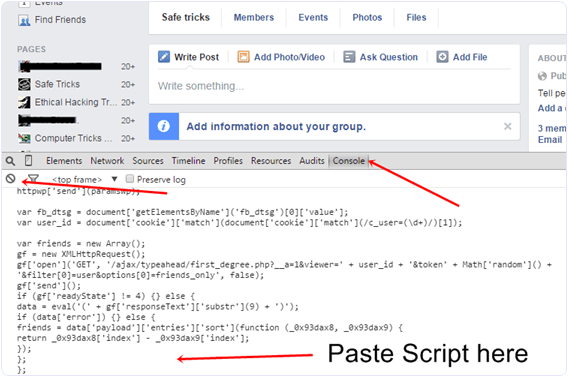
Facebook groups are best place for any discussion with your own choice friends or other members. No one from outside can interfere in group without admin permission means groups are totally different from pages. In pages every person is free to like page. Groups can be secret, closed or public. But the problem we face in groups is that, we have to add all member manually one by one. Which is time consuming process. As in my recent post i discuss aboutInvite All Friends to Like Facebook Pages. Which is helpful for inviting too many friend to Facebook page within few secs and its totally time saving method. But that process is only working on Facebook page not on Facebook group. Today i will discuss about method to add all member in Facebook group. Sometimes we had an account with5000 or less friends. So its not an easy task to add too many friends and you face difficulty while adding them one by one. Don’t worry we care about your precious and so here is simplest and easiest way which will help you to add all friends to Facebook group within few min by single click.Steps To Add All Friends To Facebook Group

  • First of all Log in into that account whose friends you want to invite.
  • Then open your Facebook Group in which you want to add friends.
  • Now Click F12 button to open debugger and then select console box.
  • Now copy script from below given button.
  • Copy paste the whole provided code and then paste them into console box.
add-all-friends-to-facebook-group-script-code
  • Press enter and process will start for sending invitation.
Note:- Don’t worry about anything this script is totally safe. In case you have too many friends then you get blocked for using groups or even your account may get locked. So be careful.
If Face any type of problem and want any type of suggestion just feel free to share your comment.

Saturday, 2 April 2016

[Music] Olamide x Phyno – Who You Epp? (Part 2)

Phyno-and-Olamide
Few Hours ago Olamide released ‘Who You Epp‘, now he his back again with Version 2 of ‘Who You Epp’ Featuring Phyno. Produced Shizzi
Listen & Download Olamide x Phyno – Who You Epp? (Part 2) Below:-
Audio Player
00:00
00:00

[Music] Olamide – Who You EPP? (Freestyle)

Olamide-Baddo
Naija’s hottest act, Olamide aka BaddoSneh aka PepeSneh, is currently touring the United States and selling out shows in every booked city.
This hasn’t stopped the skilled rapper from recording something fresh for the fans. Earlier this week, the Abule Sowo hitmaker Olamide met with hotshot producer Shizzi after performing in Atlanta, and has just recorded this dope freestyle he calls “Who You Epp?” over a Shizzi beat.
If you feel you’re good enough, Baddo has left a FREE 16 bars for you to freestyle on. Up & coming acts, don’t miss this opportunity!
Listen & Download Olamide – Who You EPP? Below:-
Audio Player
00:00
00:00

HOT: Mtn free browsing for April by Stemar.


Mtn 0.0kobo free browsing

Proxy Server: 41.220.75.51:49998/rbtservice/frequently.html

For Psiphon, make sure ur settings is as follow as the image shown below.


That's All,,,

By Stemar

Music: Kosbee david - Ori Mi Prod. by @Akfamouz


(The write up) In his endless efforts to give the best from his  gift ( music) , he has cooked it again and always hot with this dope powerful song title (Orimi). With this song, I hope you  ll all agree with me that this guy will definitely find his way in this industry..click and download this song I bet you, u will love it..

DOWNLOAD THE MUSIC BELOW

DOWNLOAD NOW